Galaxea R1 Pro Safety
Read Robot Safety first. This page adds what is specific to the R1 Pro.

Two 7-joint arms on a 4-joint torso, on a wheeled base. The base can drive and the torso can fold and stand up, so keep a clear floor around the whole robot, not just in front of the arms.
Switches and E-stop
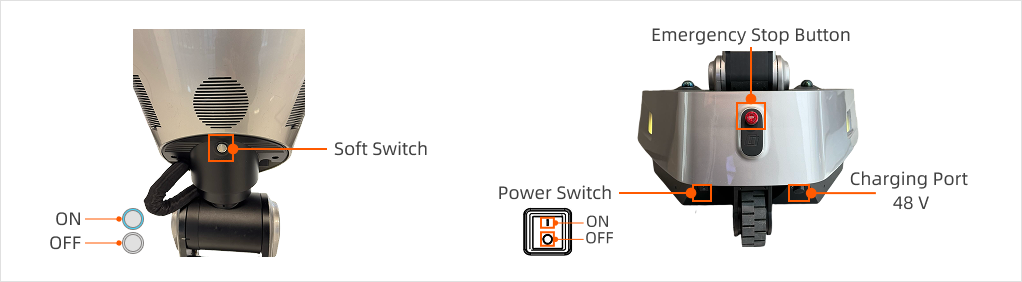
| Control | Where | What it does |
|---|---|---|
| Emergency stop button | Top of the back of the chassis | Stops all motion. It does not cut power. |
| Power switch (rocker) | Bottom of the back of the chassis | Main power. |
| Soft switch | Under the torso, at the back | Turns the computer and drives on and off. |
| Charging port (48 V) | Bottom of the back of the chassis | Charger only. |
Remote controller
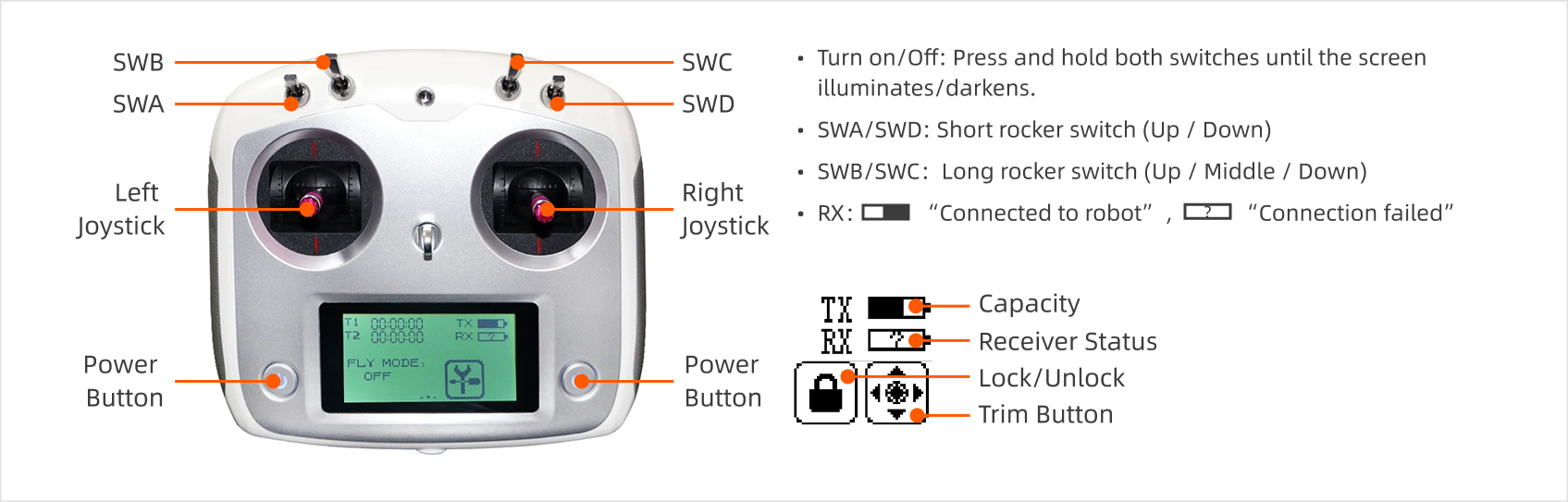

- Before you turn the remote on, push all four switches (SWA, SWB, SWC, SWD) up.
- Whenever you are not driving, keep all four switches up. The robot stays stopped.
- SWD down = emergency stop, in any mode.
Power on
- Floor clear around the robot, nothing under or next to the arms.
- Emergency stop button released. Remote on, all switches up.
- Turn the power switch on.
- Press the soft switch and wait for the blue light.
- Start dimos on the robot, for example
dimos run r1pro-coordinator. See the R1 Pro README for the full setup and the other blueprints.
Power off
dimos stop.- Hold the arms steady, or make sure nothing is under them. They can drop when power is cut.
- Hold the soft switch until the blue light goes off.
- Turn the power switch off.
After an E-stop
The R1 Pro needs a full restart after its E-stop (button or SWD) has been used. Releasing it is not enough; carrying on without a restart makes the robot misbehave.
dimos stop.- Release the E-stop and put SWD back up.
- Turn the power switch off, then follow Power on from the top.